How to Convert JPG to WebP Without Losing Quality
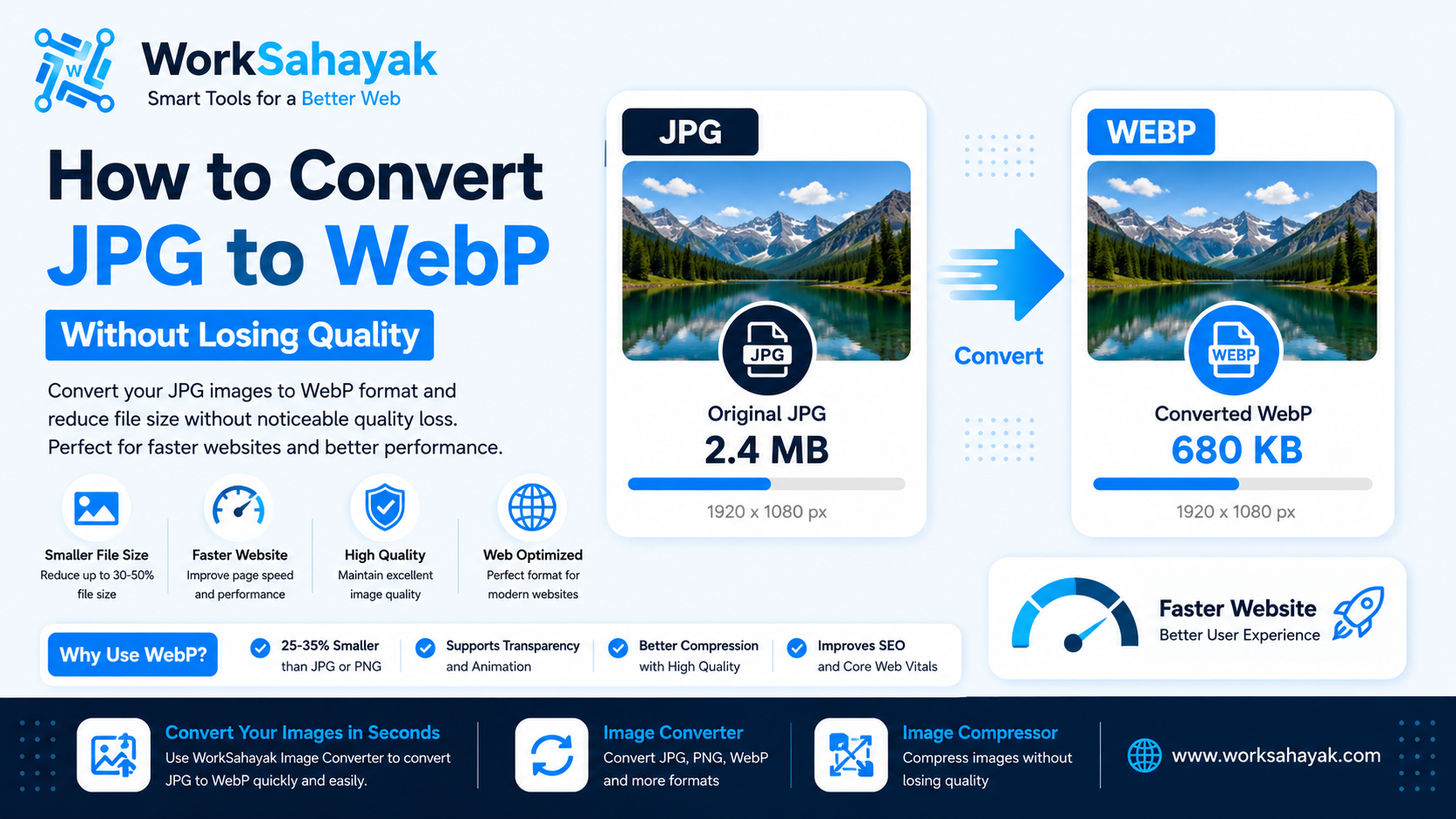
Learn how to convert JPG images to WebP without noticeable quality loss. Discover the benefits of WebP, when to use it, and how to convert images quickly online.
Images play an important role in modern websites, but large image files can slow down page loading and affect the user experience. One of the easiest ways to reduce image size while maintaining good quality is to convert JPG images to WebP.
WebP is a modern image format designed for the web. It can provide smaller file sizes while maintaining excellent image quality, making it a popular choice for websites, blogs, online stores, and web applications.
In this guide, we'll explain how to convert JPG to WebP, why WebP is useful, and how you can convert your images without noticeable quality loss.
What Is WebP?
WebP is an image format developed for the web. It supports both lossy and lossless compression and can also support transparency and animation.
The main purpose of WebP is to provide high-quality images with smaller file sizes compared with many traditional image formats.
Smaller images mean less data needs to be downloaded by visitors, which can help improve website loading performance.
Why Convert JPG to WebP?
JPG is still an excellent format for photographs, but WebP offers several advantages for websites.
- Smaller image file sizes
- Good visual quality
- Supports transparency
- Supports animation
- Useful for modern websites
- Can reduce bandwidth usage
- Can help improve page loading performance
JPG vs WebP
| Feature | JPG | WebP |
|---|---|---|
| Compression | Lossy | Lossy & Lossless |
| Transparency | No | Yes |
| Animation | No | Yes |
| Web Usage | Very Common | Excellent |
| File Size | Small | Often Smaller |
How to Convert JPG to WebP
Converting JPG images to WebP doesn't have to be complicated. You can convert an image online in just a few simple steps.
Step 1: Select Your JPG Image
Start by choosing the JPG image you want to convert. You can select a photograph, website image, product image, banner, or any other supported JPG file.
Step 2: Upload the Image
Upload your JPG image to an online image conversion tool. There is no need to install complicated image editing software for a simple format conversion.
Step 3: Select WebP
Choose WebP as the output format. The converter will process the JPG image and create a WebP version.
Step 4: Download the WebP Image
Once the conversion is complete, download the new WebP image and use it on your website, blog, application, or online store.
You can use the Worksahayak Image Converter to convert JPG images to WebP quickly and easily.
Can JPG Be Converted to WebP Without Losing Quality?
Yes, but it is important to understand what "without losing quality" means.
JPG itself is normally a lossy format. This means some image information may already have been removed when the JPG was originally created.
When converting JPG to WebP, choosing an appropriate quality setting can preserve the visual appearance of the original image while potentially reducing its file size.
The best setting depends on the type of image and how it will be used.
What Quality Should You Use for WebP?
There is no single quality setting that is perfect for every image.
For photographs and website images, a moderate-to-high quality setting can provide an excellent balance between image appearance and file size.
For example, if an original JPG is very large, you may be able to reduce its size significantly while still keeping the image visually sharp.
Always preview the converted image before publishing it.
WebP for Website Images
WebP can be particularly useful for website images because website visitors need to download every image displayed on a page.
Using smaller images can reduce the amount of data transferred between your server and the visitor's device.
This can be especially useful for mobile users and pages containing many images.
WebP for E-commerce Websites
Online stores often contain many product images. A product page may display multiple photographs, thumbnails, banners, and promotional graphics.
If every image is unnecessarily large, the total page size can become very high.
Converting suitable product images from JPG to WebP can help reduce image file sizes while keeping products visually attractive.
This makes WebP a useful format for product galleries, category pages, banners, and other e-commerce content.
WebP and Website Speed
Website performance depends on many factors, including server response time, JavaScript, CSS, fonts, caching, and images.
Images are often one of the largest types of resources downloaded by a browser. Optimizing them can therefore make a noticeable difference to page performance.
However, converting an image to WebP is not the only optimization you should perform.
You should also:
- Resize images to appropriate dimensions
- Compress images before uploading
- Use responsive images
- Lazy-load suitable images
- Specify image width and height
- Use descriptive filenames
- Add useful alt text
When Should You Use JPG Instead of WebP?
WebP is a great choice for many modern websites, but JPG is still useful.
You may prefer JPG when you need a simple, widely supported format for photographs or when compatibility with older software and workflows is important.
For general web development, however, WebP can be an excellent option when supported by your workflow and target browsers.
When Should You Use PNG?
PNG is useful when you need lossless image quality or transparency.
Logos, screenshots, interface graphics, icons, and images with transparent backgrounds are common examples.
For large photographic images, however, PNG may produce a much larger file than JPG or WebP.
JPG to WebP Conversion Checklist
- Choose a high-quality original JPG
- Resize the image if it is unnecessarily large
- Convert the JPG to WebP
- Check the converted image visually
- Compare the original and converted file sizes
- Use descriptive filenames
- Add appropriate alt text
- Use responsive images where appropriate
- Test the image on desktop and mobile
Convert JPG to WebP Online with Worksahayak
Need a quick way to convert your images?
The Worksahayak Image Converter makes it easy to convert supported image files between different formats.
You can use it when you need to convert JPG images to WebP for websites, blogs, online stores, social media graphics, or other digital projects.
If your main goal is to reduce the size of an existing image, you can also try the Worksahayak Image Compressor.
Final Thoughts
Converting JPG to WebP is a simple way to prepare images for modern websites. WebP can provide a good combination of image quality and smaller file sizes, making it useful for many web projects.
For the best results, don't rely on format conversion alone. Resize oversized images, compress them appropriately, use descriptive filenames, and provide useful alt text.
If you're looking for a simple online solution, try the free Worksahayak Image Converter to convert your images and the Image Compressor to reduce their file sizes.
About Worksahayak Team
We build fast, privacy-first utilities for everyday image and document workflows — free for everyone to use.
Learn more about us