How to Improve Core Web Vitals in 2026: Complete Website Speed Guide
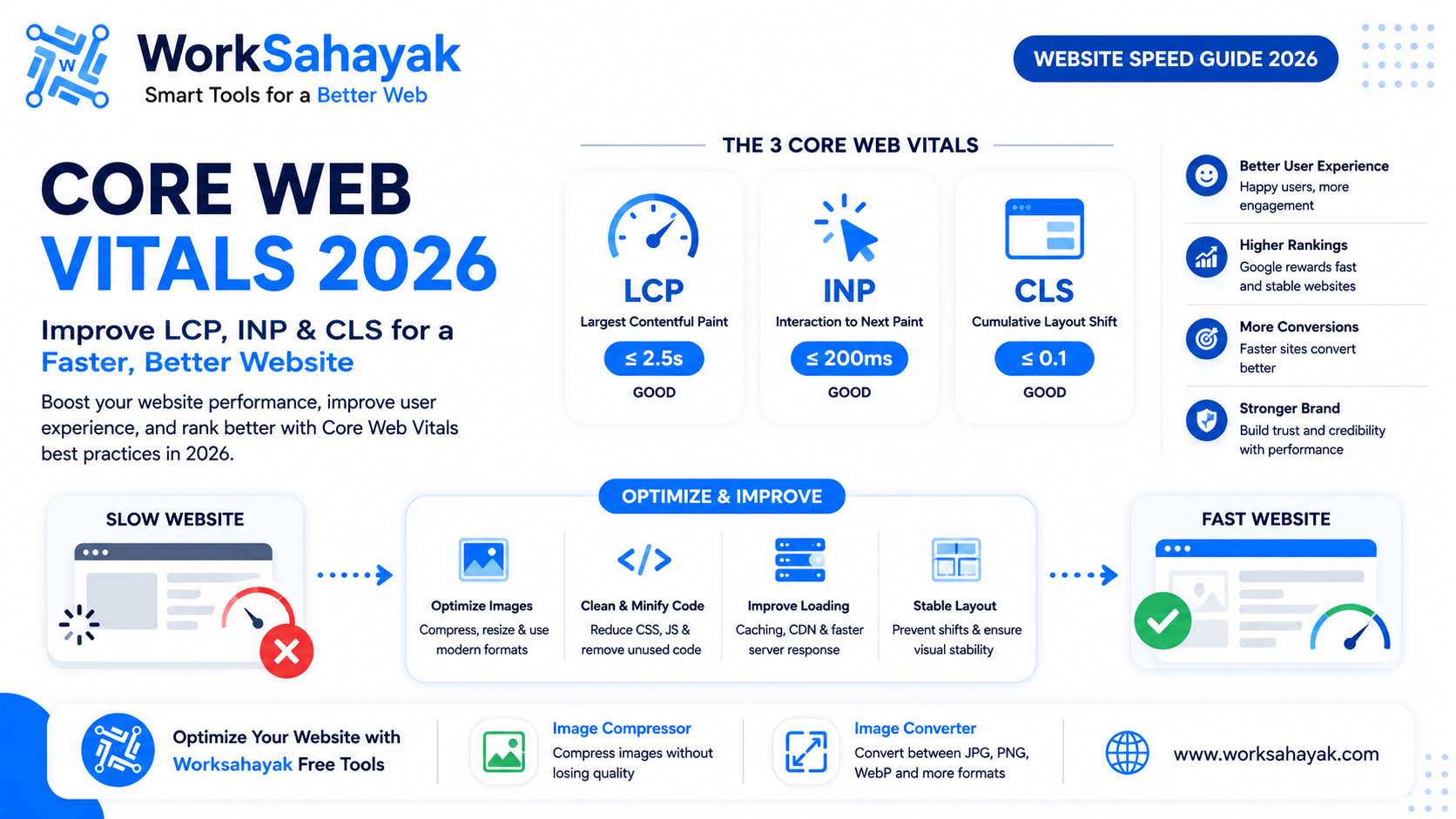
Learn how to improve Core Web Vitals in 2026 by optimizing images, reducing JavaScript, improving page loading, preventing layout shifts, and creating a faster website.
Website speed is more important than ever in 2026. Visitors expect pages to load quickly, respond smoothly, and remain stable while they browse.
Core Web Vitals are a set of performance metrics designed to measure important parts of the real-world user experience. The current Core Web Vitals focus on three areas: loading performance, responsiveness, and visual stability.
The three Core Web Vitals are:
- LCP — Largest Contentful Paint
- INP — Interaction to Next Paint
- CLS — Cumulative Layout Shift
In this guide, we'll explain what these metrics mean and how you can improve them using practical website optimization techniques.
What Are Core Web Vitals?
Core Web Vitals measure different aspects of how users experience a webpage.
| Metric | What It Measures | Good Target |
|---|---|---|
| LCP | Loading performance | 2.5 seconds or less |
| INP | Responsiveness | 200 ms or less |
| CLS | Visual stability | 0.1 or less |
These targets are evaluated using real-user data at the 75th percentile. Meeting the recommended thresholds for most visitors is an important performance goal. :contentReference[oaicite:1]{index=1}
1. Improve Largest Contentful Paint (LCP)
LCP measures how quickly the main content of a page becomes visible.
A slow LCP can make a website feel slow even if other parts of the page are already loading.
A good LCP target is 2.5 seconds or less.
How to Improve LCP
- Optimize the main image
- Reduce server response time
- Remove unnecessary render-blocking resources
- Preload important resources when appropriate
- Use efficient image formats
- Reduce unnecessary CSS and JavaScript
- Use caching effectively
Images are frequently the largest visible element on a page, so optimizing the main image can have a significant impact on loading performance.
2. Optimize Website Images
Large images are one of the most common reasons for heavy web pages.
Before uploading an image, check its dimensions and file size.
For example, if your website displays an image at approximately 1200 pixels wide, uploading a 5000-pixel-wide image may be unnecessary.
A better workflow is:
Resize → Compress → Choose the right format → Upload
You can use the Worksahayak Image Compressor to reduce unnecessary image file size before uploading images to your website.
3. Use Modern Image Formats
The image format you choose can have a major effect on file size.
JPG can be useful for photographs, PNG is useful for graphics and transparency, and WebP can provide a good balance of quality and file size for many web images.
Instead of uploading every image in the same format, choose the format based on the type and purpose of the image.
If you need to change formats, you can use the Worksahayak Image Converter.
4. Improve Interaction to Next Paint (INP)
INP measures how responsive a webpage feels when users interact with it.
For example, when someone clicks a button, opens a menu, submits a form, or interacts with a page element, the website should respond quickly.
A good INP target is 200 milliseconds or less.
Common Causes of Poor INP
- Too much JavaScript
- Long-running JavaScript tasks
- Heavy third-party scripts
- Complex event handlers
- Large amounts of unnecessary code
How to Improve INP
- Reduce unnecessary JavaScript
- Break long tasks into smaller tasks
- Remove unused scripts
- Optimize event handlers
- Load non-critical scripts when needed
- Avoid unnecessary work after user interactions
A lightweight website is generally easier to interact with than a page overloaded with scripts and effects.
5. Reduce Cumulative Layout Shift (CLS)
CLS measures unexpected movement of content while a webpage is loading.
Imagine clicking a button just as an advertisement or image suddenly loads above it and pushes the button downward. This creates a poor user experience.
A good CLS target is 0.1 or less.
How to Reduce CLS
- Set width and height for images
- Reserve space for dynamic content
- Avoid inserting content above existing content
- Use stable layouts
- Handle fonts carefully
- Reserve space for banners and embedded elements
For example:
<img src="example.webp"
width="1200"
height="675"
alt="Website optimization">
Providing image dimensions helps the browser reserve the correct amount of space before the image loads.
6. Optimize Your CSS
Large and unnecessary CSS files can increase the amount of work required before a page becomes usable.
Review your stylesheets regularly and remove unused rules where possible.
You can also:
- Minify CSS
- Remove unused CSS
- Reduce duplicate styles
- Load non-critical styles appropriately
- Keep critical page styles lightweight
7. Reduce Unnecessary JavaScript
JavaScript can add powerful functionality to a website, but too much JavaScript can also make pages slower and less responsive.
Review your website scripts and ask whether every script is actually necessary.
Remove unused plugins, unnecessary animations, duplicate libraries, and scripts that provide little value.
8. Improve Server Response Time
Before the browser can display a page, it needs to receive the necessary resources from the server.
A slow server response can delay the entire loading process.
You can improve server performance by:
- Using efficient database queries
- Enabling caching
- Optimizing backend code
- Reducing unnecessary server processing
- Using appropriate hosting resources
- Keeping applications updated
9. Use Browser Caching
Caching allows browsers to reuse resources that have already been downloaded.
For returning visitors, properly configured caching can reduce unnecessary network requests and improve loading performance.
Static assets such as images, CSS, JavaScript, and fonts can often benefit from suitable cache policies.
10. Optimize Fonts
Fonts can also affect page performance and visual stability.
Using too many font families and weights can increase the amount of data required to load a page.
Consider using only the font styles you actually need.
- Reduce unnecessary font weights
- Use modern font formats
- Preload critical fonts when appropriate
- Use sensible fallback fonts
- Avoid loading large collections of unused fonts
11. Optimize Mobile Performance
A website that performs well on a powerful desktop computer may behave differently on a mobile device.
Mobile users may have slower connections and less powerful hardware.
Always test important pages on mobile devices.
Pay particular attention to:
- Image sizes
- JavaScript execution
- Font loading
- Layout stability
- Touch interactions
- Page weight
12. Don't Lazy-Load Important Images
Lazy loading can be useful for images that are below the initial viewport.
However, the main visible image should generally be available as soon as possible.
Using lazy loading incorrectly on an important above-the-fold image can delay its appearance and potentially hurt loading performance.
Use lazy loading selectively rather than adding it to every image.
13. Build a Lightweight Website
One of the best performance strategies is to avoid unnecessary complexity.
A website doesn't need dozens of animations, plugins, scripts, popups, trackers, and visual effects to provide a great experience.
Keep your pages focused on the content and functionality visitors actually need.
Core Web Vitals Optimization Checklist
- Keep LCP at 2.5 seconds or less
- Keep INP at 200 milliseconds or less
- Keep CLS at 0.1 or less
- Compress large images
- Resize oversized images
- Use suitable image formats
- Set image width and height
- Reduce unnecessary JavaScript
- Optimize CSS
- Improve server response time
- Enable caching
- Optimize fonts
- Test mobile performance
- Monitor real-user performance
How Worksahayak Can Help
Images are an important part of website performance, and optimizing them can reduce unnecessary page weight.
With the Worksahayak Image Compressor, you can reduce the file size of supported images before adding them to your website.
If you need to convert images between formats, use the Worksahayak Image Converter.
A simple image workflow can be:
Resize your image → Compress it → Convert to a suitable format → Upload it → Test your page
Final Thoughts
Improving Core Web Vitals isn't about making one single change. Website performance usually improves when you combine several small optimizations.
Start with the biggest problems first. Optimize large images, improve your main content loading, reduce unnecessary JavaScript, prevent layout shifts, and make your website responsive and lightweight.
Focus on real users rather than chasing a perfect score. A fast, stable, and responsive website provides a better experience for visitors and creates a stronger technical foundation for your online presence.
For image optimization, try the free Worksahayak Image Compressor and Worksahayak Image Converter.
About Worksahayak Team
We build fast, privacy-first utilities for everyday image and document workflows — free for everyone to use.
Learn more about us